
How to Compress a JPEG on Mac for Free — 5 Easy Methods
imgmend Team
AI Image Tools
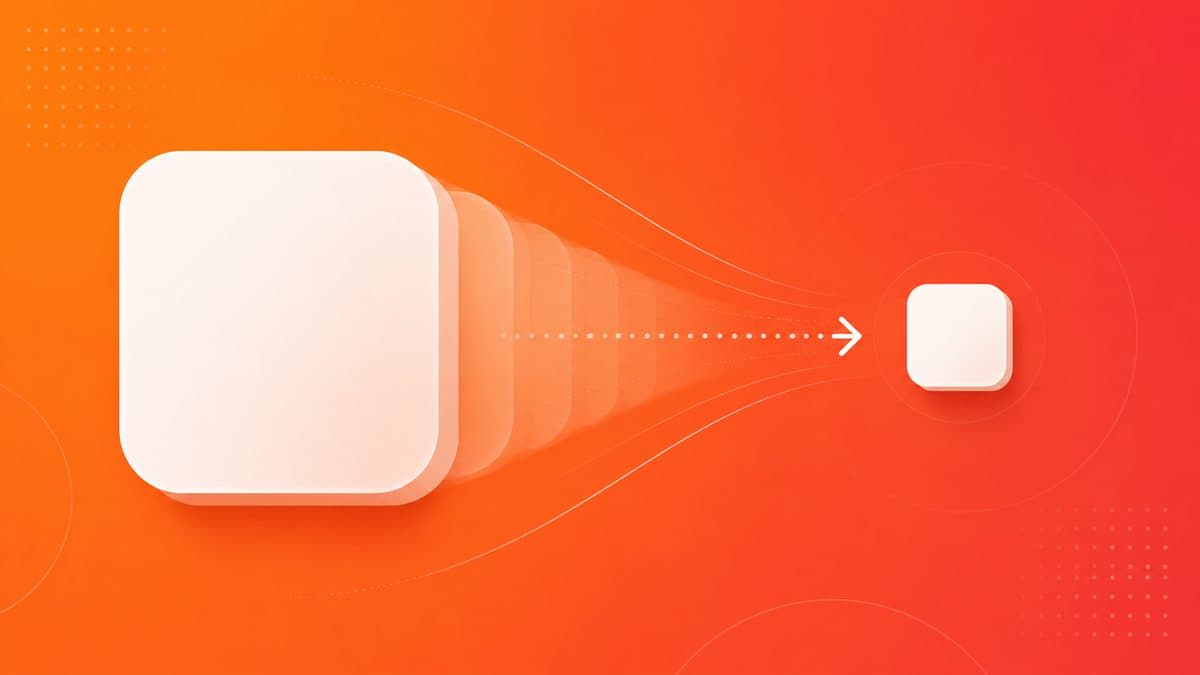
Need to reduce a JPEG file size on Mac without losing quality? Here are 5 free methods — from the built-in Preview app to a browser-based tool that works on any Mac.
How to Compress a JPEG on Mac for Free — Quickest Method
The fastest way to compress a JPEG on Mac is to use imgmend.com/compress-image — open Safari, upload your JPEG, set the quality level, and download the compressed file. No app installation required. Works on any Mac regardless of macOS version. Free for unlimited compressions with no signup.
Alternatively, Mac's built-in Preview app can compress JPEGs without any additional tools — but with less control than dedicated compression tools.
Method 1: Browser-Based Compression — imgmend (Any Mac, Free)
Best for: quick compression with quality control, any Mac
- Open Safari (or Chrome/Firefox) on your Mac.
- Go to imgmend.com/compress-image.
- Drag your JPEG onto the upload area, or click to browse.
- Use the Quality slider to set compression level:
- Quality 85 — excellent for web use, typically 60–75% smaller than the original
- Quality 70 — good quality, 75–85% smaller, ideal for email attachments
- Quality 50 — visible compression, 85–90% smaller, only for thumbnails or previews
- Optionally set Max dimension to also resize the image (e.g., 1920px for web use).
- Click Compress Image and download the result.
The compressed file size is shown before downloading so you can verify the result meets your requirements.
Method 2: Preview App (Built into macOS)
Best for: quick Mac-native compression without opening a browser
- Open your JPEG in Preview (double-click the file, or right-click → Open With → Preview).
- Go to File → Export.
- In the Export dialog, make sure Format is set to JPEG.
- Drag the Quality slider left to reduce file size. A lower quality setting = smaller file. Aim for 70–85% for a good balance.
- Click Save.
Preview resize trick: Before exporting, go to Tools → Adjust Size to also reduce the pixel dimensions. Halving the pixel dimensions reduces file size by approximately 75% regardless of quality setting.
Limitation: Preview's quality slider doesn't show the resulting file size before you save, so you may need to try a few settings to hit a target file size.
Method 3: Photos App Export (macOS)
Best for: images already in your Mac Photos library
- Open the Photos app and find your image.
- Go to File → Export → Export Photo.
- In the dialog, set:
- Kind: JPEG
- JPEG Quality: Low, Medium, or High (roughly equivalent to 50%, 70%, and 85% quality)
- Size: set a maximum dimension to also resize
- Click Export and choose a save location.
Method 4: Automator Batch Compression (macOS, Multiple Files)
Best for: compressing many JPEG files at once without third-party apps
macOS includes Automator, a built-in automation tool that can batch-resize/compress folders of images:
- Open Automator (in Applications or search with Spotlight).
- Create a new Quick Action.
- Set "Workflow receives current" to image files in Finder.
- Search for and add the Scale Images action — set a maximum pixel dimension.
- Add a Copy Finder Items action first to preserve originals.
- Save the Quick Action.
- Now right-click any group of JPEG files in Finder → Quick Actions → run your automation.
Note: Automator resizes by pixel dimensions rather than quality percentage. Combine with Preview export for quality control.
Method 5: Terminal (sips command)
Best for: developers and power users who prefer the command line
macOS includes sips (Scriptable Image Processing System), a command-line tool for image manipulation:
sips -s formatOptions 70 -s format jpeg input.jpg --out output.jpgThis sets JPEG quality to 70 (range 0–100). For batch processing a folder:
for f in ~/Desktop/photos/*.jpg; do
  sips -s formatOptions 75 -s format jpeg "$f" --out "${f%.jpg}_compressed.jpg"
done
Replace ~/Desktop/photos/ with your folder path. The compressed files save with _compressed appended to the filename.
JPEG Compression Quality Reference
| Quality Setting | Typical Size Reduction | Visual Quality | Best Use |
|---|---|---|---|
| 90–100 | 10–30% | Visually lossless | Print, archival |
| 80–89 | 35–55% | Excellent, no visible artifacts | Web display, professional use |
| 70–79 | 55–70% | Good, minor artifacts at 100% zoom | Web, email attachments |
| 60–69 | 70–80% | Acceptable, some blocking visible | Email thumbnails, web previews |
| Below 60 | 80–90% | Noticeable quality loss | Thumbnails only |
How to Hit a Specific File Size Target
Some platforms require images under a specific file size (e.g., under 1 MB for email, under 500 KB for a form upload). Here's how to target a specific size:
- Start at quality 80 and check the resulting size
- If still too large, reduce to 70 and check again
- If the image has a very large pixel count (phone camera = 12–50 MP), also reduce the pixel dimensions — resize to 2000px max width and the file size will drop dramatically regardless of quality setting
- imgmend.com shows the output file size before you download, making it easy to iterate
Frequently Asked Questions
How do I compress a JPEG on Mac without losing quality?
Use Quality 80–85 in imgmend.com/compress-image or Preview's Export dialog. At these settings, the compression is virtually invisible at normal viewing sizes. Quality 85 typically reduces file size by 50–65% with no perceptible visual change for screen display.
Can I compress a JPEG on Mac without any software?
Yes — use Preview (built into macOS): File → Export → set JPEG quality slider → Save. Or use imgmend.com/compress-image in Safari — browser-based, no installation. Both are completely free.
How do I compress multiple JPEGs at once on Mac?
Select multiple files in Finder → right-click → Quick Actions → Trim (or use an Automator workflow you've created). For browser-based batch compression, imgmend.com processes one file at a time. For true batch processing, Squoosh CLI or ImageOptim (free Mac app) handle multiple files efficiently.
Why is my JPEG still large after compressing in Preview?
Preview's quality slider affects compression but not pixel dimensions. A 12 MP iPhone photo at quality 50 can still be 2–4 MB because it's 4032×3024 pixels. Reduce both: Tools → Adjust Size (set max 1920px) then File → Export (quality 75–80). The combination of smaller dimensions and compression reduces file size by 90%+ from the original.
What is the best free JPEG compressor for Mac?
For single images with quality control: imgmend.com/compress-image (browser-based, free, shows output size before downloading). For batch compression of many files: ImageOptim (free Mac app, lossless optimization). For command-line batch processing: sips (built into macOS, no install needed).
Ready to remove noise from your photos?
Free, no signup, instant results — works in your browser.
Try the Free AI Denoiser →Related Guides
How to Unpixelate (Depixelate) an Image Online — Free AI Fix (2026)
Pixelated, blurry, or low-resolution images can be restored with AI. Here's how to unpixelate a photo for free online — no Photoshop required.
6 min read
How to Fix an Underexposed Photo (Without Adding Grain)
Underexposed photos look dark and murky, and brightening them reveals noise. Here is how to brighten the shadows, protect the highlights, and clean up the grain that comes with it.
6 min read
How to Fix Grainy Photos: 5 Free & Paid Ways (2026)
Fix grainy photos with a free AI denoiser, your phone, Lightroom, Photoshop, or GIMP — step-by-step instructions, what each method is best for, and why grain appears in the first place.
11 min read
How to Remove a Logo from a Photo (Free)
Need to remove a logo, sticker, or brand mark from your own photo? Here's how to erase it cleanly with free AI inpainting — no Photoshop, no signup.
5 min read
How to Remove Image Noise Online — The Complete Guide
Image noise ruins great photos. This guide shows you the fastest ways to remove grain and noise from any photo online — free, without Photoshop.
10 min read